Setup Afi2Go Prime to Assign Animal Tag Numbers
The Afi2Go Prime mobile application is your office in the field. Follow the steps below to set your phone to work with this application, and learn how to work with it to assign new or replacement tags.
Set your phone to work with NFC
-
The mobile phones connect to each other via NFC chips.
-
iPhone users - Your phones are automatically enabled to work with NFCs.
-
Android users - Make sure your phone is enabled to work with NFCs: Open your phone Settings, locate and open Connections, then toggle NFC and contactless payments to ON.

-
Download Afi2Go Prime from the Google playstore/Apple app store, then log in to your app using the login credentials set in AfiFarm.
Username: Your farm account name
Password: 1234
Note: See Add New Users for your login credentials or contact your support personnel.
-
Confirm you have a strong internet connection where you will be working. If you do not have a strong internet connection, switch to Offline Mode.
Note: You will be prompted to download your data. After this, tap Start Offline mode see Work Offline for full instructions on how to access offline mode, and how to reconnect and sync your data.


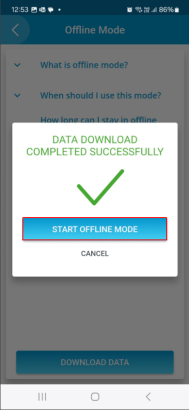
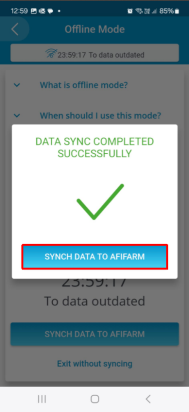
Note: Once you have finished working in Offline mode, you must sync your data to AfiFarm in order to return to online mode.

-
Use your mobile to assign tags to animals. There are several methods for doing this:
-
Mobile phone NFC connection - see the video: Assign Tags
-
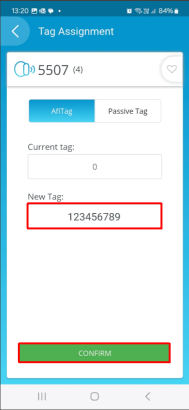
Manually add the tag number - Tap Tag Assignment, run a search using the cow number, type in the tag number, then tap Confirm.